Personas
Put your own face in your thumbnails.
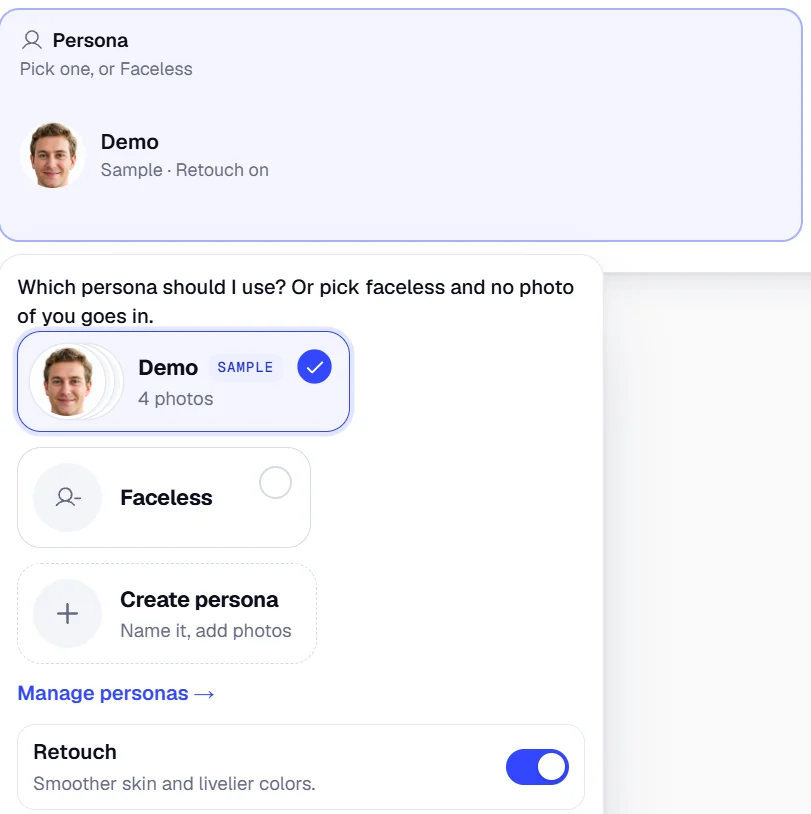
A persona holds photos of one person, and WThumb, an AI thumbnail maker for YouTube, draws that person into any thumbnail you make with it, whether you start from a YouTube link or from a description. Create one once with a name and a few clear portraits, then pick it on the Persona tile whenever the design should show you.
2 free credits (1 credit = 1 thumbnail), no card
How it works
From a few photos to a thumbnail with your face.
Create the persona
In the Studio, open the Persona tile and create a persona: give it the person's name and add their photos. You sign in first, because a persona is kept in your account for every thumbnail after.
Confirm the photos
Before the photos can be used, the Studio asks you to confirm you have the right to them: the face is yours, or it belongs to a person who said yes to appearing, like a client whose videos you make.
Pick it and press Make
Choose the persona on the Persona tile in Recreate or in Prompt, finish the brief and press Make. The design comes back with that person in it.
Examples
One persona, three different thumbnails.
Each thumbnail below was made in Prompt from a short description, and all three used Demo, the sample persona every account is given, for the face.
 Car review
 Client work
 Onboarding
Photos
What a persona holds.
Each persona stands for one person: a name and as many as 8 photos, in PNG, JPEG or WebP and up to 8 MiB apiece. For a likeness the model can hold, add between two and six portraits that are in focus and taken in good light; one blurry photo leaves it guessing.
One of the photos is the primary, the cover the persona shows in the picker, and Use as primary hands that place to another photo. Retouch, a pass that evens out skin and lifts the colors, starts out on; turn it off for a natural look, and the chosen persona's line in the Studio shows which way it is set.
Sample persona
Try a face before you add your own.
Demo comes with every account, given once: a sample persona of 4 photos that a visitor can also pick in the Studio before signing up. It cannot be renamed or made the default, and it can be deleted like any other persona.
A face costs nothing extra: a thumbnail with a persona uses 1 credit, the same as one without.
No face
Or leave the face out.
Faceless sits beside your personas on the Persona tile and makes the thumbnail with no persona at all; the Faceless page sets out what it removes from a reference and what it keeps.
Deleting photos
Your photos stay until you delete them.
A persona keeps its photos for every thumbnail you make with it, until you delete them, the persona or the account. Single photos and whole personas are deleted from Personas in the account menu, deleting a persona deletes its photos, and each deletion asks you first.
Make a thumbnail with your face.
Open the Studio, try Demo first, and add a persona of your own when you sign in.
Open the Studio2 free credits, no card