Choose a relevant reference
Start with a thumbnail whose visual job fits your video. Use the structure as direction, not another creator's identity as a shortcut.
WThumb is an AI thumbnail generator for YouTube. Paste a public YouTube link, upload an image, or describe the video in words, add your title and an optional photo, and get a finished 16:9 or 9:16 JPEG without an editor.
2 free credits (1 credit = 1 thumbnail), no card
WHAT CHANGES
The link supplies a public thumbnail as the visual brief. These real WThumb results show new landscape and vertical compositions, with and without a personal photo.
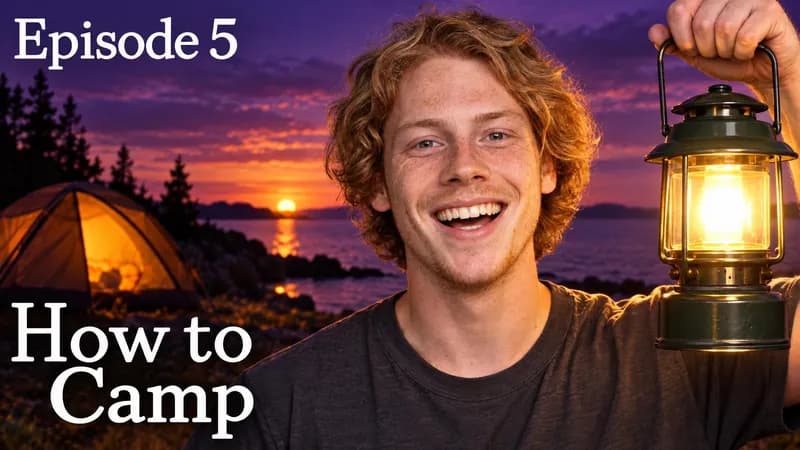
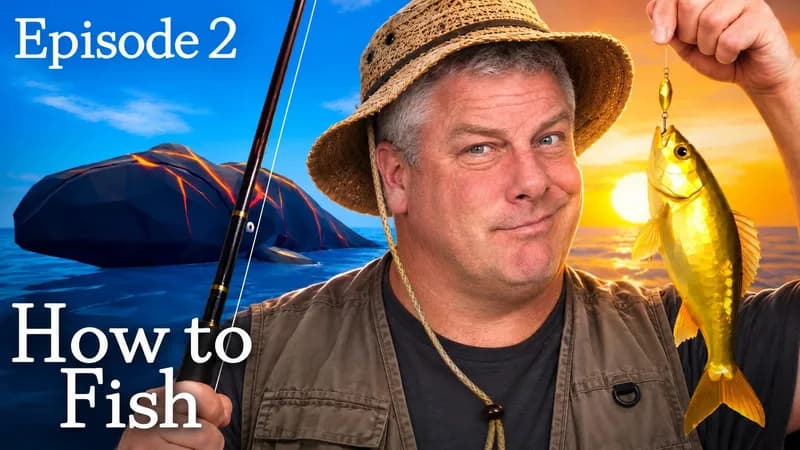
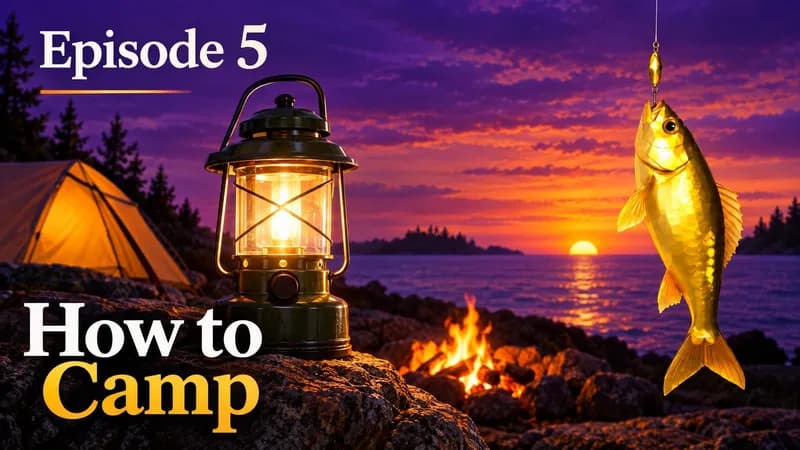

Use a public YouTube video link above, choose a reference image in Studio, or pick From a prompt only and describe the video in words.
Add the real title, visual direction, optional personal photo, and any supporting images the new video needs.
Request 16:9, 9:16, or both. WThumb builds each selected format as its own composition.
BUILD THE BRIEF
Start with a thumbnail whose visual job fits your video. Use the structure as direction, not another creator's identity as a shortcut.
Name the subject, result, question, or contrast the video actually delivers. The reference cannot decide that promise for you.
Check text, faces, products, logos, numbers, and small interface details before publishing. Regenerate or finish exact details in an editor when needed.
QUESTIONS
Yes. New accounts receive 2 free credits with no card needed, and 1 credit makes 1 thumbnail. Free thumbnails carry no watermark and come at the same Full HD+ size as on any plan. Paid plans are available when you need more.
Any one of three. A YouTube link: paste a public video whose thumbnail fits yours, for example a video in your niche, and its thumbnail becomes the reference. An image: upload a PNG, JPEG, or WebP of a thumbnail or design you like, for example a screenshot you saved. A text prompt: choose From a prompt only and describe the video, for example: a chef holding a burnt pan in a smoky kitchen, words 3 MISTAKES. Whichever you start from, you can add an optional photo of yourself and up to four extra images, such as a product or a logo.
Yes. Open Studio, choose From a prompt only, and describe the video: the subject, the moment, and the words for the image. No reference is needed. It works best for real-life footage; when you want a particular look, a reference image shows it faster than words.
Yes. Choose From a prompt only and describe the video in a sentence, with no reference at all, or paste the link of a public YouTube video whose thumbnail you like and use it as the reference. A photo of yourself is optional, and so are supporting images.
No. There is no canvas and there are no layers. You start from a YouTube link, an uploaded image, or a short description of your video, add your title and an optional photo, and WThumb returns a finished 16:9 or 9:16 JPEG. Changes are asked for in plain words.
About 30 seconds for a typical thumbnail. There is nothing to export afterwards: the finished JPEG uploads to YouTube as it is.
No. The public thumbnail becomes a visual brief for a new variation. Your subject, wording, photo, format, and direction shape the generated result.
Yes. Add a clear personal photo when you should appear in the result, or leave it out for a faceless thumbnail.
Yes. Press the pencil on a finished thumbnail and describe the change, for example: bigger words, a night background, or a more surprised face. WThumb makes a new version with that change. Each revision uses 1 credit, and there is no limit on revisions.
Yes. Choose 16:9, 9:16, or both. Each completed output uses 1 credit and is composed for its selected frame. A finished 16:9 thumbnail can also get its 9:16 version later: press Make the Shorts version on it in Studio.