Prompt
Turn a few sentences into a finished thumbnail.
Prompt makes a thumbnail from a description alone: in WThumb, an AI thumbnail maker for YouTube, you type what the picture should show into one box, with no reference image or video link, and a new design is drawn from your words. Say who is in it, where they are and the exact words to print, pick your own face or Faceless, and press Make.
2 free credits (1 credit = 1 thumbnail), no card
How it works
From a blank box to a finished picture.
Open Prompt
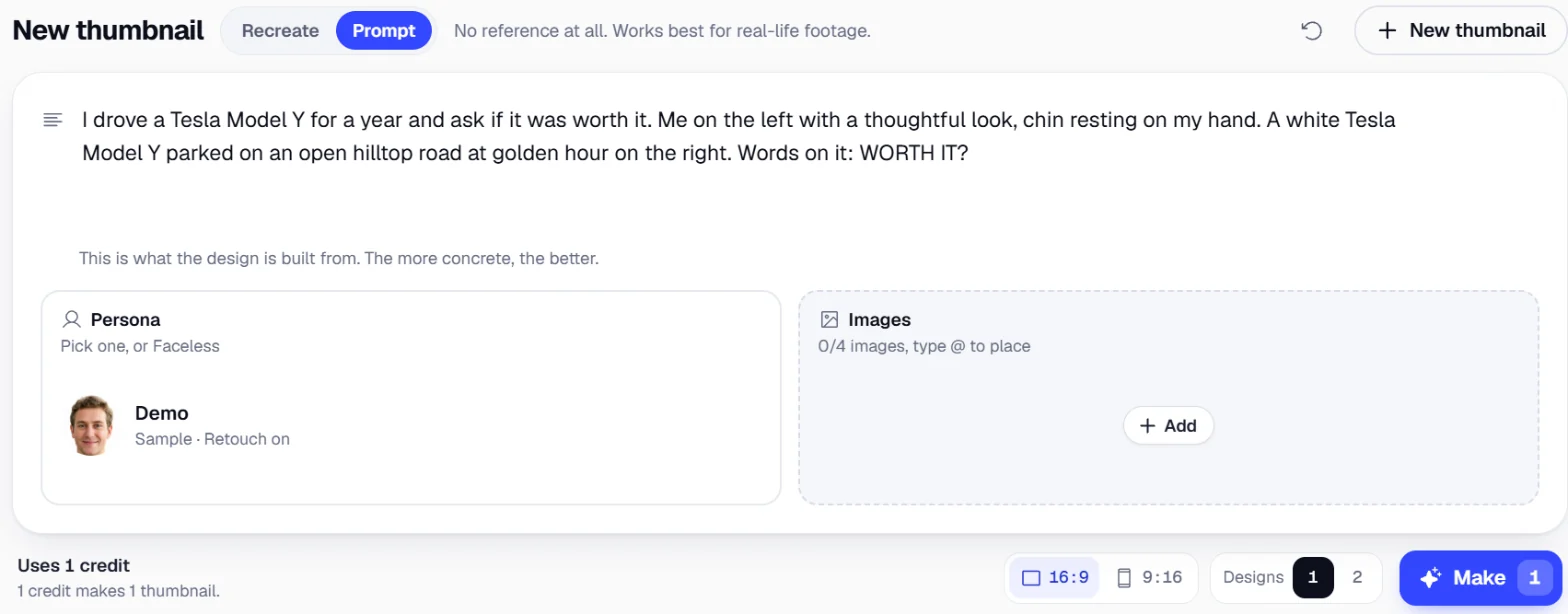
The Open the Studio buttons on this page open it already in Prompt; inside the Studio, press Prompt beside Recreate, above the card. The card then holds one box labelled Prompt, with the Persona and Images tiles under it.
Describe the thumbnail
Write what the picture should show in up to 2,000 characters, and end with the exact words to put on it if it should have any. Then open the Persona tile and pick a persona for your own face, or Faceless for none.
Pick the frame and press Make
In the bar under the card, choose 16:9, 9:16 or both, and 1 or 2 designs. The button then says how many thumbnails it will make, and it asks you to sign in first if you have not yet.
Examples
Three descriptions and the thumbnails they made.
Each picture below came from one Prompt run at 16:9, with Demo, the sample persona, picked on the Persona tile and the description beside it typed exactly as shown.
“Me” in a description means the person of the persona you picked, and the words after “Words on it:” are the headline that was printed on the picture.
None of the three says how the words should look, so the white letters of WORTH IT? and the yellow on 50 and on 24H were the design's own choices.
 Car review
What was typed
“I drove a Tesla Model Y for a year and ask if it was worth it. Me on the left with a thoughtful look, chin resting on my hand. A white Tesla Model Y parked on an open hilltop road at golden hour on the right. Words on it: WORTH IT?”
 Agency clients
What was typed
“How I run 50 client accounts without stress. Me leaning back relaxed in my chair with both hands behind my head, smiling at the camera, in a dark, moody home office with soft warm light. The HubSpot, Notion and Slack logos as big glossy app icons floating beside me. Words on it: 50 CLIENTS”
 Client onboarding
What was typed
“How my agency onboards a new client in 24 hours. Me holding up a signed client contract and smiling at the camera, in a dark, moody office at night with warm lamp light on my face and a deep, dark background for strong contrast. The Calendly, Stripe and Google Drive logos as big glossy app icons floating beside me. Words on it: ONBOARDED IN 24H”
Writing it
What a description that works says.
Begin with what the video is about, in the words you would use to tell a friend. The design is built around the reason a viewer would click, so a first sentence that states that reason gives it the most to work with.
Next, place the person: say where you are in the frame and what you are doing, such as on the left with a hand on your chin, or leaning back with your hands behind your head. Your photo sets the face, while the expression, the posture and the clothes are drawn to suit the scene.
Then give the setting and its light, like a hilltop road at golden hour or a dark office lit by one warm lamp. A few words are enough, as the background is kept calm and softly focused so the person and the headline stand out.
Name any product, app or logo that belongs in the picture and how it should look, such as big glossy app icons; no logo or app icon is added unless your words name it. A laptop or a phone is seen from the side or from behind, with nothing on its screen, unless you say what the screen shows.
Finish with the exact words after a marker such as “Words on it:”, and they are printed as you typed them, so a few short words read best. With no words in the description the thumbnail has none at all, and a line like “you decide” lets the design add one to three words only where the picture needs them.
The description can be written in any language, and so can the words you want printed.
Face and images
Your face, no face, and pictures of your own.
Make waits for an answer on the Persona tile. A persona puts your own face in the design, while Faceless leaves you out: no host or narrator is drawn in your place, and a person appears only where the description asks for one.
As many as 4 images of your own can go in too, such as a product shot, a place or a logo. Add them on the Images tile or paste a screenshot straight into the box, and each one is numbered @1, @2 and on.
Type @ in the description to put an image where it belongs and say what it is for, and one you never place is set wherever the design has room. A person in an attached image is never taken for you.
Frames and cost
Sizes, designs and what a run uses.
Choose 16:9 for a video, 9:16 for a Short, or both; with both, each picture is arranged for its own shape, so the tall one is never a slice of the wide one.
Ask for 2 designs to get two different takes on the same description. Every thumbnail uses 1 credit, so both frames with 2 designs make 4 thumbnails and use 4 credits.
A Prompt run has no title, so the thumbnail's own page takes its name from the first line of the description, and a first line that says what the video is about doubles as a good name.
Once a picture is finished it can be changed in words or by marking the parts to change, and a 16:9 picture can be given a Shorts version.
Prompt or Recreate
When to describe it, and when to show it.
Prompt suits a picture you can already see and say: a person, a place, an object or two and a short headline, above all a scene that could have been photographed.
When the look you want is easier to point at than to put into words, such as the layout, colors and lettering of a thumbnail on another channel, start in Recreate instead. Paste that video's link or upload the image, and the thumbnail becomes the reference a new one is built on.
Both ways in lead to the same Persona tile, the same frames and the same Make button, and nothing is used until you press it, so trying one and then the other costs nothing.
Describe your next thumbnail.
Open the Studio in Prompt, pick Demo or a persona of your own, and write what the picture should show.
Open the Studio2 free credits, no card