Templates
Pick a YouTube thumbnail template and make it about your video.
Templates is the set of ready-made thumbnail templates in WThumb, an AI thumbnail maker for YouTube: you pick one, type your topic and the exact words to print, and its layout and look carry over to your video. To use a template with your own face, pick it on the Classic tab and choose a persona made from your photos; the Faceless tab is a second library that takes no persona and no photo of you.
2 free credits (1 credit = 1 thumbnail), no card
How it works
From a card to a finished thumbnail.
Open Templates and pick a tab
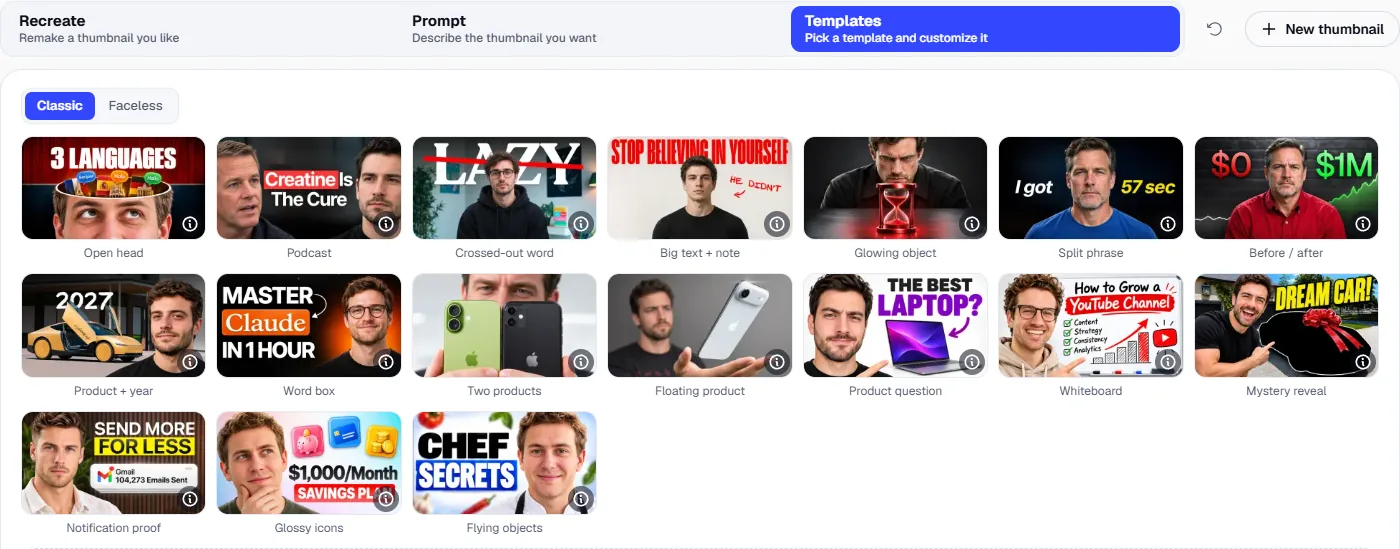
The Open the Studio buttons on this page open it already in Templates; inside the Studio, press Templates beside Recreate and Prompt. Then choose the Classic tab for a thumbnail with your persona, or the Faceless tab for one with no photo of you.
Press a card
A press only selects the card, and nothing is made yet. The info button at the bottom right of its picture opens the card's examples, each shown with the exact words typed for it.
Fill in what the card asks for
On a Classic card, pick a persona on the Persona tile; a Faceless card has no tiles. Then write your topic and any change in Prompt, and the exact words to print in Text on the thumbnail.
Press Make
The bar under the card reads Uses 1 credit, and the button reads Make, with a 1 beside it. A press with a part missing takes you to the first missing part instead of starting, and a visitor signs in at Make.
One template, two videos
The layout stays, and the topic changes.
A template made for another video keeps its layout and look, and changes its topic, its words and the things in the picture.
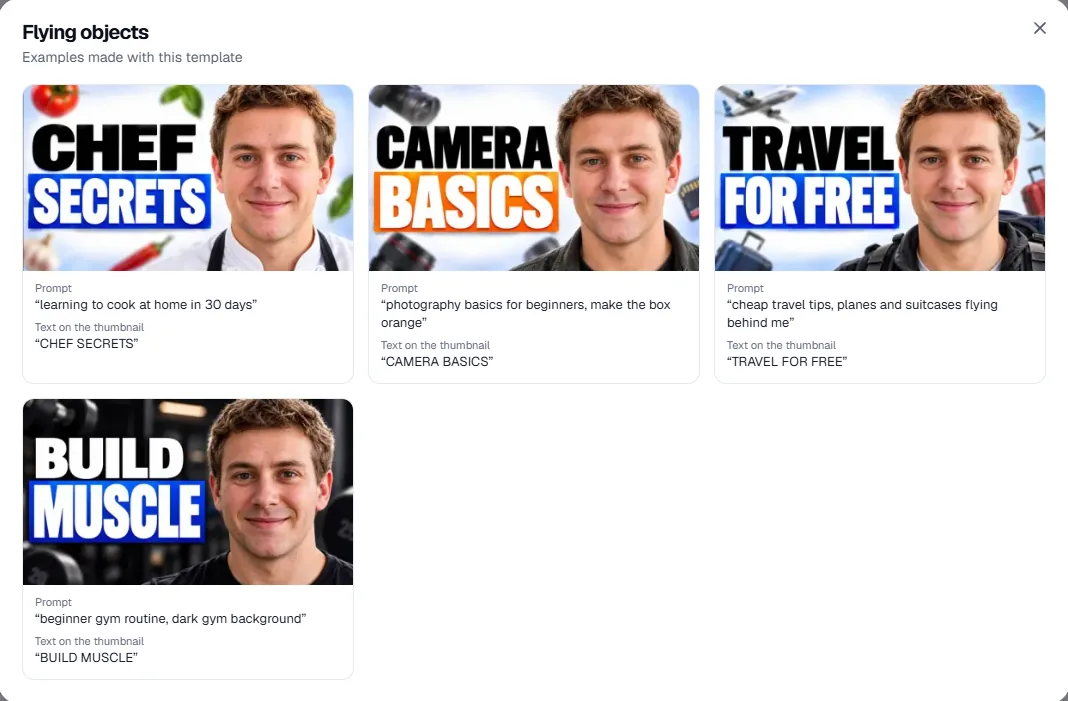
Both pictures below are Flying objects. The first is the picture on its card, made for a cooking video. The second was made for a photography video, with “photography basics for beginners, make the box orange” in Prompt and “CAMERA BASICS” in Text on the thumbnail.
Two lines of big words, the last in a box, the person large on the right and a few blurred things near the edges all carried over. The food became cameras and lenses to fit the topic, and the box turned orange because the Prompt asked for it.
 The template
 Another video
Classic library
How to use a template with your own face.
To use a thumbnail template with your own face in WThumb, create a persona from your photos, open the Classic tab, press a card and pick that persona on the Persona tile. Every Classic card needs a persona before Make will run.
Your persona takes the place of the person in the template, in the same spot and framing. Nothing else comes from that person, neither the clothes nor the props, and you are dressed for your own video's topic.
The sample persona counts as a persona too, so a Classic card can be tried before you add photos of yourself. The Persona tile has no Faceless choice in Templates: for no photo of you, switch to the Faceless tab.
Most Classic cards ask only for a persona and the two boxes, and a few ask for more. Podcast has two seats, so it also requires one photo on the Second person tile. Crossed-out word and Product + year have a Background tile, marked Optional, that takes one photo of your own; leave it empty and the background is chosen to fit your video. Big text + note adds one box, Text 2 (optional), for the short handwritten line by the arrow. A photo on either tile can be a PNG, JPEG or WebP of up to 12 MiB.
Open head, below, opens the top of a head and fills it with your topic: flags and speech bubbles on the card, made for a video about learning languages. For the second picture, Prompt held “my brain on way too much coffee. make the red part green” and Text on the thumbnail held “TOO MUCH COFFEE”.
 The template
 Another video
Faceless library
Faceless is a library of its own.
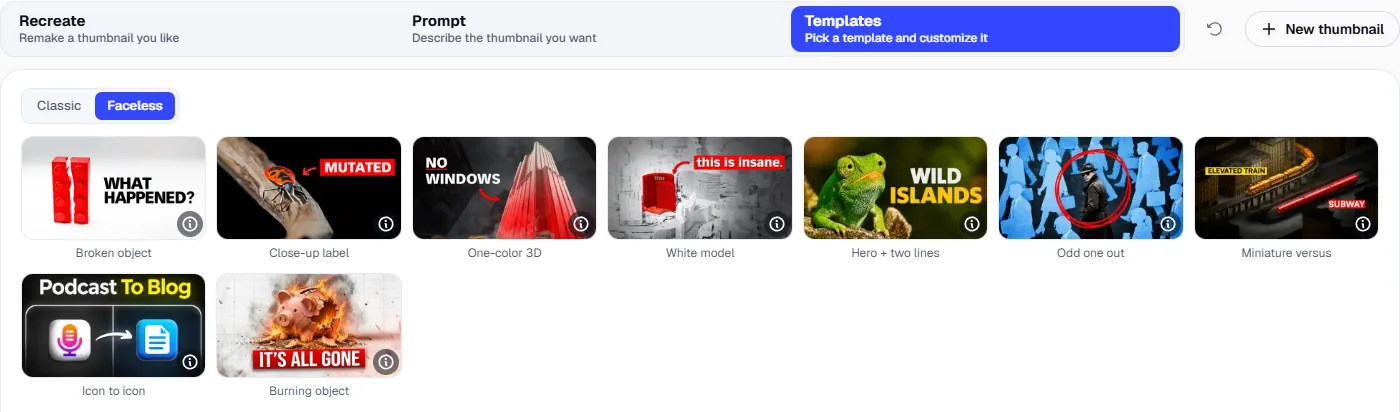
The Faceless tab holds a separate set of templates with cards of their own, so it is a second library rather than a setting on the Classic cards.
A card here makes a thumbnail built around a subject instead of you, such as a burning object, a broken object, a close-up with a red label, a large 3D subject in one color, one real subject ringed among flat cut-outs, two rivals in a miniature scene, or two glossy icons joined by an arrow.
A Faceless card takes no persona, no photo of you and no upload of any kind. It shows no tiles, only the Prompt and Text on the thumbnail boxes.
Faceless means your photo is not used, not that no person can ever be drawn. Most of these cards add a person only if the Prompt asks for one, and the examples of Odd one out ask for a barefoot runner and a hard-working employee.
Burning object, below, was first made for a video about lost savings. For the second picture, Prompt held “the housing market crash, a small house model, dark background” and Text on the thumbnail held “HOUSES CRASHED”.
 The template
 Another video
The boxes
What to write in Prompt and Text on the thumbnail.
Prompt takes what your video is about, any change you want to the template, or both. It is required on every card and holds up to 1,200 characters. A topic alone is enough, as in “wireless earbuds review” or “a stadium”.
Text on the thumbnail takes the exact words to print, on one line of up to 280 characters, and Text 2 has the same limit. On cards that set the last words apart, such as the box on Flying objects or the yellow on Icon to icon, the last of your words go there.
Cards that can go without words label the box Text on the thumbnail (optional), as on Glowing object and Odd one out. Left empty, only your Prompt words go in.
Unless you ask for a change, a template keeps its layout, the position and size of every element, its lettering and its look. What belongs to the topic is swapped to fit your video, such as the flying things, the icons or what fills the open head. There is no canvas to drag things around on: you type, and each Make draws a new picture that follows the card closely without matching it pixel for pixel.
A change goes in the Prompt in plain words, because Templates has no separate box for it. Requests from the examples include “make the box orange”, “make the red part green”, “blue background not black”, “kitchen behind me”, “put a pizza instead of the hourglass” and “no arrow”.
The popup below belongs to Flying objects, and the words under each picture are what was typed for it: “dark gym background” is what turned the last one dark. Every card's info button opens one like it, and nothing in it fills your boxes, so you type your own.
After Make
One thumbnail, then Edit or a Shorts version.
One Make gives one 16:9 thumbnail and uses 1 credit. Templates has no 9:16 choice and no second design at Make, so those two switches are not in its bar.
Press Edit under the finished picture and say what should change. An Edit uses 1 credit, becomes the next version and keeps the 16:9 frame.
Press Make the Shorts version under a finished 16:9 picture to get a 9:16 version for 1 credit, the only way to a 9:16 thumbnail from a template. It is offered once per picture, only while nothing newer has been made from that thumbnail.
In My thumbnails the thumbnail is labelled Templates, and its page lists the template, the Prompt and the words you gave it.
Template, Recreate or Prompt
When to pick a template instead of Recreate or Prompt.
Pick a template when you have the topic and the words but no picture in mind, and you want the layout already decided.
Use Recreate when you have already found the thumbnail to start from. Templates takes no YouTube link, no reference upload and no card from the Library, so a look you found elsewhere goes through Recreate.
Use Prompt when you would rather describe the whole picture yourself, or when you want to add images of your own, as a template takes only the photos its card asks for. Recreate and Prompt can both make 9:16 or 2 designs from one Make, and a template cannot.
You cannot save a template of your own or upload one. Pressing cards and reading their examples uses no credits; only Make does.
Pick a template for your next video.
Open the Studio in Templates, press a card on the Classic or Faceless tab, and add your topic and the words to print.
Open the Studio2 free credits, no card