The TikTok thumbnail size and the Instagram Reels cover size come with fewer official numbers than you might expect. Instagram's help page recommends 420 x 654 pixels for a reel's cover photo, a 1:1.55 ratio, and TikTok's gives no pixel size at all; it describes the cover as a frame you pick from the video. The practical answer is one 9:16 picture at 1080 x 1920 with the design kept inside a central area of about 1080 x 1350, used as the Reels cover, the TikTok cover and the YouTube Shorts thumbnail.
That central area is there for Instagram's profile grid, where a full 9:16 picture doesn't fit. We read every YouTube, Instagram and TikTok page linked in this post on November 20, 2026, so if a button in your app has a new name, check the page.
TikTok and Reels cover size, from each app's own page
Instagram's Reel size & aspect ratios page gives the most. Reels can have an aspect ratio between 1.91:1 and 9:16, at a minimum resolution of 720 pixels, and the recommended size for cover photos is 420px by 654px, or a 1:1.55 ratio. That's a little shorter than the tallest reel, since 9:16 works out to about 1:1.78.
TikTok's Editing, posting, and deleting page calls a video cover the thumbnail that previews your video in places like your profile or search results, and gives no size. The cover it describes is a frame you choose from the video, so a TikTok cover size you see in a chart isn't a number from the TikTok help pages we read.
YouTube's Add custom thumbnails page recommends 2160 x 3840 pixels for Shorts, with a minimum height of 640 pixels, and says to try a 9:16 aspect ratio. YouTube Shorts size has the rest of the Shorts numbers.
I make mine 1080x1920. That's 9:16, exactly half of YouTube's recommended Shorts size on each side and three times its 640-pixel minimum height, and it's the tallest shape Instagram's page lists for a reel.
420 x 654
Instagram's recommended Reels cover size
9:16
The tallest reel shape Instagram lists
2160 x 3840
YouTube's recommended Shorts thumbnail
No size
On TikTok's help page for covers
How to add or change a cover on Reels and TikTok
On Instagram, the cover goes on before you share. The iPhone tab of Instagram's Record a reel page says that after editing you tap Next, then Edit cover to select a new cover photo or add one from your device. On a computer, you use the slider below Cover photo to pick a frame from the clip, or click Select from computer.
The size page is blunt about what comes next: "Right now, you can't edit your cover photo after you've uploaded it."
TikTok's steps are just as short: on the post screen, tap Select cover on the video thumbnail, drag to the frame you want and tap Save. The page says you can do this before posting a new video. It says nothing about changing the cover afterward or adding an image from your device, and the web browser steps on its Making a post page don't mention a cover at all. If your app only offers frames, the designed picture has to be in the video before you can pick it, for example as a still you add to the edit.
YouTube is the forgiving one: a Short's custom thumbnail can be swapped after posting, in YouTube Studio on a computer, and change a YouTube Shorts thumbnail has the steps.
| Step | Instagram Reels | TikTok | YouTube Shorts |
|---|---|---|---|
| In the phone app | Next, then Edit cover | Select cover on the post screen | Any frame from the video |
| On a computer | Cover photo slider, or Select from computer | Not described | Upload file in YouTube Studio |
| After posting | Can't be edited | Not described | Can be changed in YouTube Studio |
| Size given | 420 x 654 (1:1.55) | None | 2160 x 3840 (9:16) |
The profile grid, and a safe zone inside the 9:16 picture
On TikTok, views mostly come from the feed, and most people don't even use a custom thumbnail. On Instagram, most views come from the feed too, but not as much as on TikTok. The profile view matters a bit too.
That profile view is where a tall cover runs out of room. Since a 9:16 picture doesn't fit fully in the main grid, placing the design inside a safe zone of about 1080x1350 can make the content show in the profile grid, even if the picture is 1080x1920.
None of the Instagram help pages we read gives the profile grid's shape, so treat 1080 x 1350 as a working margin. Centered in a 1080 x 1920 frame, it leaves 285 pixels above and below, and it also sits inside the 1:1.55 shape Instagram recommends for covers, about 1080 x 1674 at the same width.
Inside that middle area, the words can go in its upper part, with the face or object under them. To check on a phone, cover roughly the top and bottom seventh of the picture with two fingers and see whether what's left still says what the video is.
Words on the cover, for someone who's never seen the video
Picture a profile full of reel covers with no words on them, only faces and scenes, and a visitor who has never seen any of the videos. Why do the words matter so much there?
Because there's no title to read like on YouTube. The only thing that gives a person an idea about the video is the cover picture.
That means the words carry the topic on their own. A few words in capitals usually do it: 3 KNOTS FOR CAMPING tells a stranger far more than PART 2 or WATCH THIS. A question is fine too, as long as the video gives the answer, like CAMPING ALONE? Set them big enough to read on a small grid tile, and keep them inside the safe zone so a crop can't cut a line in half.
Check every letter before you share, since Instagram's size page says you can't edit the cover after uploading it. If the words came out of an image generator, read them twice, because a generated picture can still drop a letter or a digit. YouTube thumbnail text goes further into how many words a thumbnail can carry and what they should say.
One picture for Reels, TikTok and YouTube Shorts
Instagram has this safe zone issue, so I set it up for that, and I use that same picture on the other platforms too.
On YouTube, the picture goes up as a custom Shorts thumbnail. The Add custom thumbnails page says those can only be added in YouTube Studio on a computer, that your account must be verified, and that the recommended aspect ratio for uploaded files is 9:16. Not every channel has that upload yet: YouTube's Making thumbnails easier on YouTube post of July 24, 2026 named YouTube Partner Program creators as the first to get custom Shorts thumbnails, with others to get them over time.
Keep it tall. The same help page warns that a vertical video given a 16:9 custom thumbnail gets an auto-generated 4:5 one in its place on the home, explore and subscription pages. If your design started out wide, landscape to Shorts covers what changes when a 16:9 layout is rebuilt for 9:16.
On TikTok, the same picture goes in as the cover if your app lets you add one from your device, or as the frame you pick if it's part of the video.
Make one 9:16 picture
1080 x 1920, with the words and the face inside the middle 1080 x 1350.
Read the middle
Check the words on a phone and look for anything important near the top or bottom edge.
Reels: Edit cover
In Instagram, tap Next, then Edit cover, and add the picture from your device before you share.
TikTok: Select cover
On the post screen, tap Select cover, drag to the frame that holds the picture and tap Save.
Shorts: Upload file
In YouTube Studio on a computer, open the Short and click Upload file below Thumbnail.
How to do this in WThumb
- Turn on 9:16 beside Make. 16:9 is on when the Studio opens and one format always stays on, so press "9:16" and turn "16:9" off for the vertical picture alone.
- Pick your persona or Faceless, and type the words. In Recreate, add a reference by "Link" or "Upload", and say in the Changes box exactly what gets printed, like change the title to "3 KNOTS FOR CAMPING". In Prompt, the words go in its one box.
- Ask for the middle. In the Changes box, or the Prompt box, ask for the words and the face in the middle of the frame, then check where they land.
- Press "Make". Each picture is its own run at 1 credit (1 credit = 1 thumbnail) and comes back in about thirty seconds as a 1152 x 2048 Full HD+ JPEG, the same 9:16 shape as 1080 x 1920, only larger.
- Already have a 16:9 design? Under a finished 16:9 picture, "Make the Shorts version" lays the same design out for 9:16 at 1152 x 2048, for 1 credit.
- Check it, then upload it yourself. Read every letter and press "Edit" to change anything in plain words. WThumb doesn't post anywhere; download it and add it yourself.
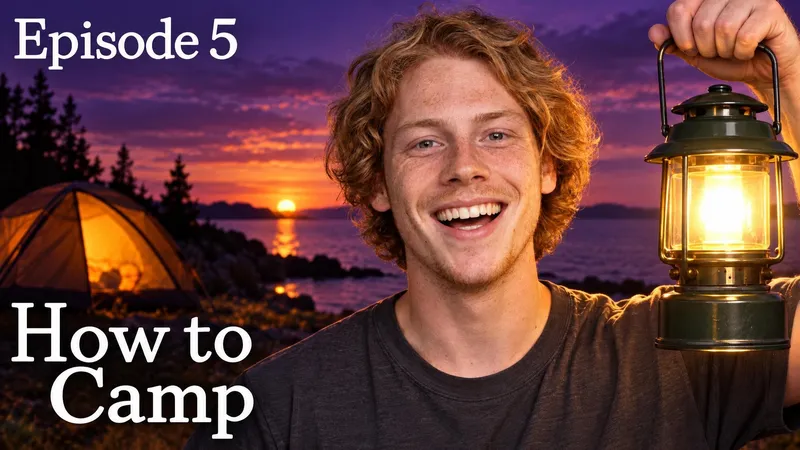
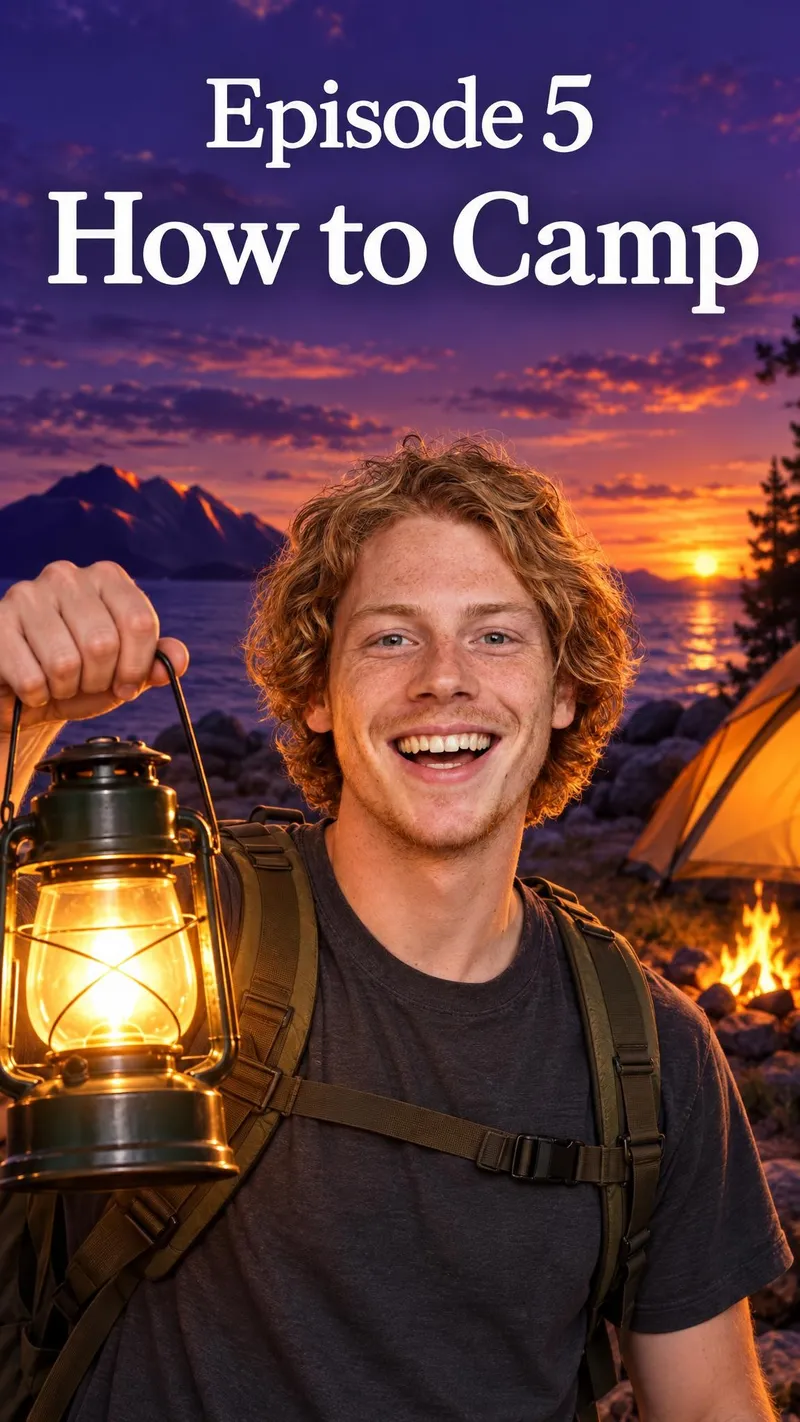
Exactly 1080 x 1920?
No page we read asks for that exact size, and 1152 x 2048 is the same shape. If you want 1080 x 1920 on the dot, the free YouTube thumbnail resizer exports it with Fit or Fill, and since the shape matches, nothing is cut off. New accounts get two free credits, no card needed.
A brief to paste
- In the Changes box. Change the title to "3 KNOTS FOR CAMPING".
- On its own line. Make it a vertical cover, the words above the person and both in the middle of the frame, nothing important near the top or bottom edge.
- Prompt, instead. Vertical cover for a camping tips video. Me kneeling by a tent at dusk, tying a rope knot. Keep the words and me in the middle of the frame. Words on it: 3 KNOTS FOR CAMPING